DNS Jumper v2.3
Change DNS servers instantly to improve internet speed, security, and bypass restrictions. Discover powerful features that make DNS management effortless.
Latest Version
v2.3
Most recent stable release
File Size
625 KB
Ultra-lightweight portable tool
Developer
Sordum.org
Trusted software publisher
Last Update
2024
Regularly maintained
OS Support
Windows
XP to Windows 11
Languages
20+
Multi-language interface
Why Choose DNS Jumper?
DNS Jumper makes it incredibly easy to change your DNS settings with just a few clicks. Improve your internet experience with our powerful features. Learn how to use it or check our FAQ section for answers.
Lightning Fast
Find and apply the fastest DNS servers automatically. Turbo Resolve feature applies the best DNS at startup.
Enhanced Security
Switch to secure DNS servers that protect against malware, phishing, and other online threats.
Bypass Restrictions
Access blocked websites and bypass internet restrictions set by ISPs or governments.
Block Ads & Malware
Use Family Safe DNS servers to block inappropriate content, ads, and malicious websites.
Easy to Use
Simple interface with one-click DNS changes. No technical knowledge required.
Backup & Restore
Automatically backup your current DNS settings and restore them anytime with one click. See how it works.
Multi-Language Support
Available in 20+ languages including English, Russian, Spanish, French, and more for global users.
Command Line Support
Automate DNS changes with command line parameters. Perfect for IT administrators and power users. View examples.
Custom DNS Groups
Create and organize custom DNS server groups for different purposes like work, home, or security needs.
See DNS Jumper in Action
Take a look at the intuitive interface that makes changing DNS servers effortless.
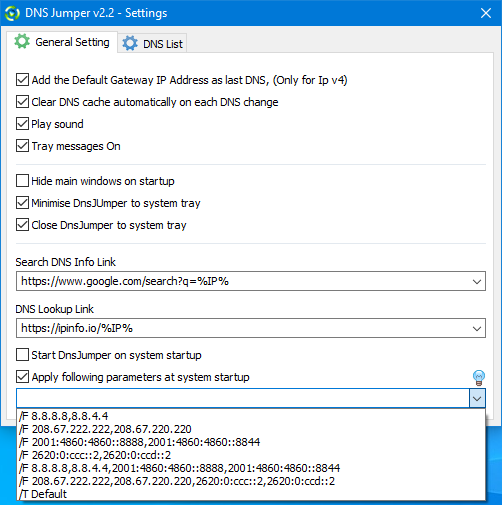
General Settings
Configure startup options and automatic DNS testing.
General Settings
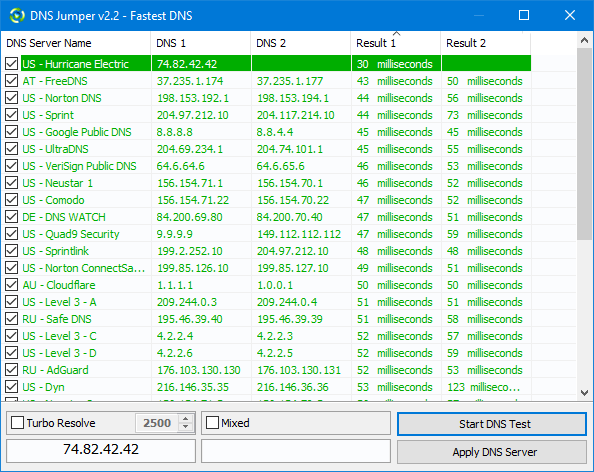
Fastest DNS
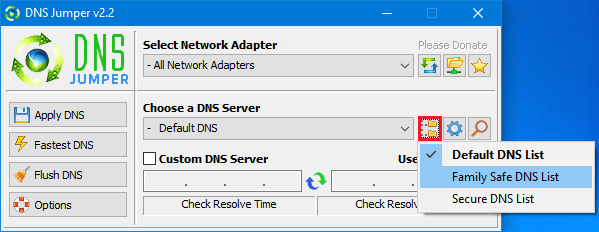
DNS Groups
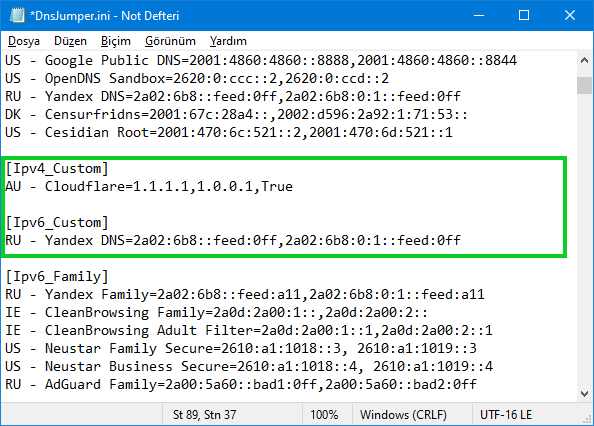
Custom DNS
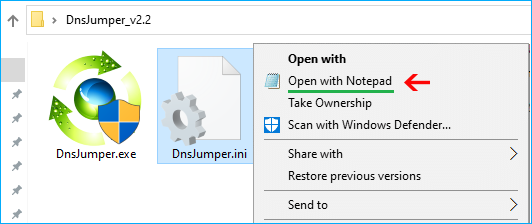
Edit Config
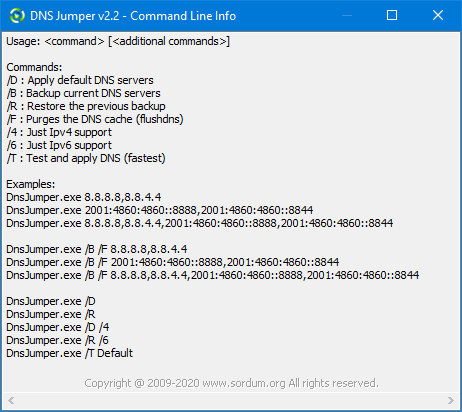
Command Line
Why Choose DNS Jumper?
Compare DNS Jumper with manual DNS configuration methods
DNS Jumper Advantages
- One-click DNS changes
- Automatic fastest DNS detection
- Built-in DNS server database
- Automatic backup & restore
- No technical knowledge required
- Command line automation support
- Portable - no installation needed
- Multi-language interface
Manual Configuration Disadvantages
- Complex Windows settings navigation
- No automatic DNS testing
- Must know DNS server addresses
- No automatic backup
- Requires technical knowledge
- No automation capabilities
- Time-consuming process
- Error-prone manual entry
How to Use DNS Jumper - Complete Guide
Learn how to change DNS servers in just a few simple steps. Our comprehensive guide covers everything you need to know. For troubleshooting, visit our troubleshooting guide or check the FAQ section.
Getting Started
Download DNS Jumper
Download the latest version (v2.3) from the official website. The file is only 625 KB and completely portable.
Download NowExtract and Run
Extract the downloaded ZIP file to any folder on your computer. No installation is required - simply double-click DnsJumper.exe to run.
DnsJumper.exe
First Launch
When you first run DNS Jumper, it will automatically detect your current DNS settings and display them in the main interface. You're ready to start changing DNS servers!
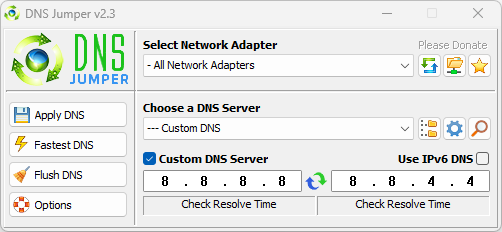
Basic Usage - Changing DNS Servers
Select a DNS Server
In the main interface, look for the "Choose a DNS Server" dropdown menu. Click on it to see a list of available DNS servers organized by categories.
- Fast DNS: Google DNS, Cloudflare, OpenDNS
- Secure DNS: Quad9, CleanBrowsing Security
- Family Safe: CleanBrowsing Family, OpenDNS Family
Apply DNS Settings
After selecting your preferred DNS server, click the "Apply DNS" button. DNS Jumper will immediately change your system's DNS settings.
Note: For IPv6 support, make sure to check the "IPv6" checkbox before applying DNS settings.
Verify Changes
After applying DNS settings, you can verify the changes by checking the "Current DNS Servers" section in the main interface. The new DNS servers should be displayed there.
Success: Your DNS settings have been changed successfully! You can now close DNS Jumper - the changes will remain active.
Advanced Features
Find the Fastest DNS
DNS Jumper can automatically test all available DNS servers and find the fastest one for your location. This feature is perfect for optimizing your internet speed.
Add Custom DNS Servers
You can add your own custom DNS servers to the list. This is useful if you have access to private DNS servers or want to use specific ones not included in the default list.
Common Issues & Solutions
High Resolve Times
If you're experiencing very high resolve times, security software might be interfering.
• Add DNS Jumper to your antivirus exclusion list
• Common culprits: Avast, Malwarebytes
• Configure ZoneAlarm to allow ping messages
DNS Changes Not Applied
If DNS changes aren't taking effect, try these solutions.
• Run DNS Jumper as Administrator
• Check if your network adapter is selected
• Restart your network connection
Program Won't Start
If DNS Jumper won't launch, check these common issues.
• Ensure you have Windows XP or newer
• Check if antivirus is blocking the program
• Try running from a different folder
Network Adapter Issues
Problems with network adapter selection and detection.
• Refresh the network adapter list
• Ensure your network adapter is active
• Check for driver updates
DNS Groups Management
Create DNS Groups
Organize your DNS servers into custom groups for easier management. You can create groups for different purposes like work, home, or specific security needs.
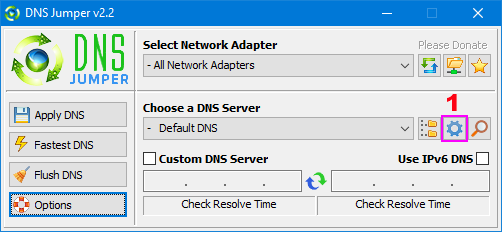
Reorder DNS List
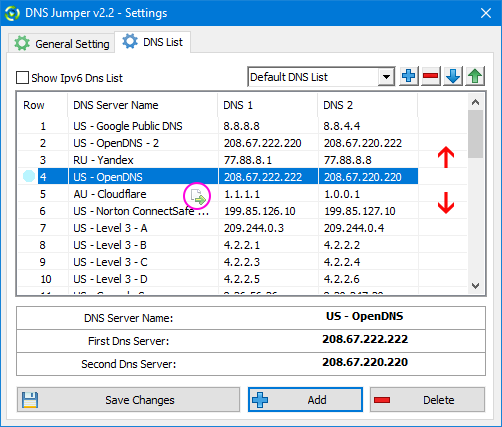
Drag and Drop Reordering
You can easily reorder your DNS server list using drag and drop functionality. This helps you prioritize your most frequently used DNS servers.
Settings & Configuration
General Settings
Access the general settings by clicking the "DNS Options" button (blue gear icon) and selecting the "General Settings" tab.
Start DNS Jumper on System Startup
Automatically launch DNS Jumper when Windows starts.
Apply Fastest DNS at Startup
Automatically test and apply the fastest DNS server when the program starts.
Command Line Parameters
Use "/T default" to apply the fastest DNS automatically at startup.
Command Line Usage
Available Parameters
Run "dnsjumper.exe /?" in command prompt to see all available parameters.
dnsjumper.exe /T default
Apply the fastest DNS server automatically
dnsjumper.exe /R
Restore original DNS settings
dnsjumper.exe /?
Display help and all available parameters
Ready to Get Started?
Download DNS Jumper now and start improving your internet experience in minutes!
Download DNS Jumper FreeFrequently Asked Questions
Find answers to common questions about DNS Jumper
Q: Is DNS Jumper safe to use?
A: Yes, DNS Jumper is completely safe. It's a legitimate tool that only changes your DNS settings. It doesn't collect any personal data or install any malware. The program is portable and doesn't modify system files beyond DNS configuration.
Q: Is DNS Jumper free?
A: Yes, DNS Jumper is completely free to use. There are no hidden costs, subscriptions, or premium features. You can use it on as many computers as you want without any restrictions.
Q: Do I need to install DNS Jumper?
A: No, DNS Jumper is completely portable. Simply extract the ZIP file and run DnsJumper.exe. No installation is required, and it won't leave any traces on your system when you delete it.
Q: Can I use DNS Jumper on multiple computers?
A: Yes, DNS Jumper is free to use on as many computers as you want. Simply copy the program folder to each computer and run it. Each computer can have different DNS settings based on your preferences.
Q: What operating systems does DNS Jumper support?
A: DNS Jumper supports all Windows versions from Windows XP to Windows 11, including both 32-bit (x86) and 64-bit (x64) architectures.
Q: Will changing DNS affect my internet speed?
A: DNS changes can actually improve your internet speed by reducing the time it takes to resolve domain names. However, the effect depends on your location and the DNS server you choose. Use the "Fastest DNS" feature to find the optimal server for your location.
Q: Can I use DNS Jumper without internet connection?
A: Yes, DNS Jumper works completely offline. It doesn't require an internet connection to change DNS settings. However, you'll need internet to download it initially and to test DNS servers.
Q: Does DNS Jumper collect any personal information?
A: No, DNS Jumper doesn't collect, store, or transmit any personal information. It's a completely offline tool that only modifies your local DNS settings.
Q: What's the difference between IPv4 and IPv6 DNS?
A: IPv4 and IPv6 are different internet protocols. IPv4 is the older standard, while IPv6 is newer and supports more addresses. Most modern networks support both. DNS Jumper can configure DNS for both protocols - check the IPv6 checkbox if you want to change IPv6 DNS settings as well.
Q: How do I restore my original DNS settings?
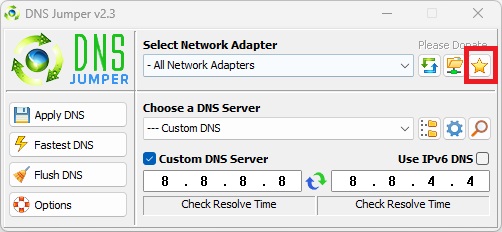
A: You can restore your original DNS settings in two ways: 1) Click the "Quick Configuration" button (star icon) and select "Default (or Restore) DNS", or 2) Use the command line parameter "/R" to restore settings automatically.
Q: Can I add custom DNS servers?
A: Yes, DNS Jumper allows you to add custom DNS servers. Click the "Add/Delete DNS" button, enter your DNS server details, and save. Your custom DNS servers will appear in the dropdown list.
Q: How does the "Fastest DNS" feature work?
A: The Fastest DNS feature tests all available DNS servers by measuring their response times. It then automatically applies the DNS server with the lowest response time for your location, which typically results in faster internet browsing.
Q: Can I use DNS Jumper from command line?
A: Yes, DNS Jumper supports command line parameters. Use "dnsjumper.exe /?" to see all available parameters. Common commands include "/T default" to apply fastest DNS and "/R" to restore original settings.
Q: What DNS servers are included by default?
A: DNS Jumper includes popular DNS servers like Google DNS (8.8.8.8), Cloudflare (1.1.1.1), OpenDNS, Quad9, CleanBrowsing, and many others organized by categories (Fast, Secure, Family Safe, etc.).
Q: DNS Jumper won't start. What should I do?
A: If DNS Jumper won't start, try these solutions: 1) Ensure you have Windows XP or newer, 2) Check if your antivirus is blocking it and add it to exclusions, 3) Try running from a different folder, 4) Run as Administrator.
Q: DNS changes aren't being applied. How do I fix this?
A: If DNS changes aren't taking effect: 1) Run DNS Jumper as Administrator, 2) Check if the correct network adapter is selected, 3) Restart your network connection, 4) Verify the changes in Windows Network Settings.
Q: I'm getting very high resolve times. What's wrong?
A: High resolve times are often caused by security software interfering. Add DNS Jumper to your antivirus exclusion list (especially Avast, Malwarebytes). Also check ZoneAlarm settings to allow ping messages.
Q: DNS Jumper is selecting the wrong network adapter. How do I fix it?
A: Manually select your active network adapter from the dropdown menu in DNS Jumper. Make sure to select the adapter that's currently connected to the internet (usually Ethernet or Wi-Fi).
Q: My antivirus is flagging DNS Jumper. Is it safe?
A: Yes, DNS Jumper is completely safe. False positives from antivirus software are common because DNS Jumper modifies network settings. Add it to your antivirus exclusion list. The software is clean and verified by multiple antivirus engines.
Download DNS Jumper - Free DNS Changer Tool
Get the latest version and start improving your internet experience today

Download Information
- Version:
- 2.3
- File Size:
- 625 KB
- Format:
- ZIP
- OS Support:
- Windows XP - 11
- Architecture:
- x86 & x64
- Languages:
- 20+
- Last Updated:
- 2024
- Developer:
- Sordum.org
System Requirements
- Windows XP or newer
- 625 KB free disk space
- Administrator rights (for DNS changes)
- Active network connection
Security Notice
Always verify the integrity of downloaded files using checksums:
SHA-256: 6fe6bac71a82a58abcb06b0df4a836116543302efe6e076402fa518dfa455baa
MD5: 142c1cb2e06b3f3e231f99b7cc4a91b2
SHA1: 8f0ecb34f6095e51ac4caa58fbef1d01e688a027
PowerShell: Get-FileHash -Algorithm SHA256 DnsJumper.zip
CMD: certutil -hashfile DnsJumper.zip SHA256
What Our Users Say
Join 5+ million users who trust DNS Jumper to improve their internet experience
"DNS Jumper is amazing! My internet speed improved significantly after switching to Cloudflare DNS. The interface is so simple and the automatic backup feature gives me peace of mind."
John Smith
IT Professional
"Perfect for bypassing ISP restrictions! I can now access all websites without any issues. The portable nature means I can use it on any computer without installation."
Maria Rodriguez
Home User
"The command line support is excellent for automation. I've set it up to automatically apply the fastest DNS on system startup. Works flawlessly!"
Ahmed Khan
IT Administrator
"Family Safe DNS feature is perfect! My kids can browse safely without worrying about inappropriate content. The interface is so user-friendly."
Lisa Wang
Parent
"Best DNS tool I've used! The automatic backup saved me when I accidentally changed to a slow DNS. Restored in seconds. Highly recommend!"
David Chen
Software Developer
"The multi-language support is fantastic! I can use it in my native language, which makes it so much easier. Great tool for international users."
Sarah Patel
Business Owner
5M+
Downloads
4.8
Rating
20+
Languages
100%
Free
Privacy & Legal Information
Privacy Policy
- • No data collection
- • DNS testing only
- • Configuration stored locally
- • No third-party services
- • Regular updates available
Disclaimer
- • Software use at your own risk
- • Network changes responsibility
- • Legal compliance required
- • Third-party services notice
- • System requirements apply
Terms of Use
- • Free for personal use
- • No modification restrictions
- • Distribution allowed
- • Support provided as-is
- • Updates available
Real User Experiences
Learn from other users who have successfully improved their internet experience
John Smith
Windows 10"I was getting extremely slow internet speeds after changing DNS with DNS Jumper. The resolve times were over 2000ms! After reading the troubleshooting guide, I added DNS Jumper to my Avast exclusion list and the problem was solved immediately. Now I get 15ms resolve times with Google DNS."
Maria Rodriguez
Windows 11"DNS Jumper kept selecting the wrong network adapter automatically. I have both Ethernet and Wi-Fi, and it was always choosing the inactive one. The manual selection tip helped me fix it. Now I can easily switch between my home Wi-Fi and work Ethernet with different DNS settings."
Ahmed Khan
IT Administrator"I needed to automate DNS changes across multiple computers in our office. The command line examples were perfect. I created a batch file that applies the fastest DNS automatically at startup. It's been working flawlessly for 6 months now."
Lisa Wang
Home User"DNS Jumper wouldn't start at all on my Windows 7 computer. I thought it was a compatibility issue, but the troubleshooting guide showed me it was my antivirus blocking it. After adding it to the exclusion list, everything works perfectly. My internet is much faster now!"
System Requirements
Supported Operating Systems
- Windows 11 (x86 & x64)
- Windows 10 (x86 & x64)
- Windows 8.1 (x86 & x64)
- Windows 8 (x86 & x64)
- Windows 7 (x86 & x64)
- Windows Vista (x86 & x64)
- Windows XP (x86 & x64)
Features
- Portable (No Installation Required)
- IPv4 and IPv6 Support
- Command Line Support
- Multiple Language Support
- Automatic DNS Testing
- Backup and Restore
Expert Tips & Best Practices
Professional advice for optimal DNS Jumper usage
Performance Optimization
Regular DNS Testing
Test different DNS servers monthly as network conditions change
Backup Original Settings
Always backup your original DNS settings before making changes
Use IPv6 When Available
Enable IPv6 support for better performance on modern networks
Security Best Practices
Choose Trusted DNS Providers
Stick to well-known providers like Google, Cloudflare, and Quad9
Use Secure DNS for Sensitive Work
Switch to security-focused DNS when handling sensitive data
Regular Security Updates
Keep DNS Jumper updated to the latest version